Collective Bargaining Agreement & Retroactive Pay, Pay Increases, and Bonuses
When a district’s governing board takes action to provide increases to employee benefits or compensation such as salary schedule increases, retroactive cost-of-living-adjustments (COLA), bonuses, or an off-salary-schedule payment, it is important to notify School Business Advisory Services (SBAS).
1. Important reminders:
* Before settling negotiations, please be aware there may be differences in the types of compensation subject to retirement contributions for certificated and classified employees. See the resources below for further guidance. * Obtain necessary board approval before inputting current or retroactive benefit or pay adjustments in Escape. * Districts are responsible for erroneous retirement reporting and may be required to assist with corrections.
1. Notify your District Financial Advisor (DFA) – Submit a Public Disclosure of Proposed Collective Bargaining Agreement (Public Disclosure):
Public school districts are required to provide notification of salary settlements to their reviewing agencies and publicly disclose proposed collective bargaining agreements before entering into a written agreement. Please submit your Public Disclosure form as well as supporting documentation (ie, copy of tentative settlement language and Escape reports supporting information input into disclosure) to SBAS at least 10-working days prior to the date that the Governing Board will take action on the proposed agreement. During the 10-day window, your DFA will review information in the document for completeness, transparency, and reasonableness. For more information and disclosure forms, see Public Disclosure of Proposed Collective Bargaining Agreements – School Business Advisory Services (sbceo.org)<sbasweb.sbceo.org/reporting/public-disclosure-of-proposed-collective-bargaining-agreements>. Contact your DFA if you have questions about the Public Disclosure form or process.
1. Submit Agreements to CalPERS and CalSTRS for Guidance on Reportability of special compensation, off-schedule pay, bonuses, etc.
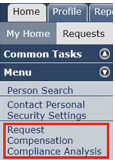
* CalSTRS: Advisory letter request – CalSTRS<www.calstrs.com/advisory-letter-request> (note, guidance can take up to 30 days) * NEW! CalPERS: Request Compensation Compliance Analysis<my.calpers.ca.gov/web/ebp/businesspartner/summary/compensationComplianceAnalysisRequestList.html?psr.param39=upBf6YRW5lG3sZYe3vkz_xJY36QgvAh8ku2iYepM-YKTrysuZOxnpw> When logged in to MyCalPERS, on the left-hand “Menu” dropdown, choose “Request Compensation Compliance Analysis.” This link replaces emailing MOU Review. For complete instructions, please see the myCalPERS Payroll Reporting – Student Guide – Scenario 3 – page 52-54 www.calpers.ca.gov/documents/mycalpers-payroll-reporting/download
1. Business Advisory Services Payroll Team – Proactively review below items. Contact Payroll Team for assistance:
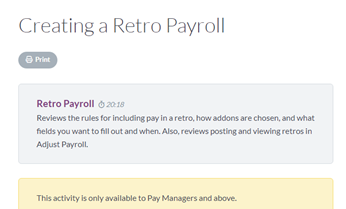
* Benefits – how to make changes to the caps * From Escape, choose “Documentation” to launch the Learning Center (also known as “Learning Opportunities”). Search for “Creating Benefit Levels,” “Creating Bargaining Units,” “Creating Benefit Coverage Types,” or “Creating Benefit Provider Records” for more information on benefit providers and caps * Salary schedules – copying and applying percentage changes, inputting end and start dates * From Escape, choose “Documentation” to launch the Learning Center. Search for “Creating Salary Schedules” and “Mass Changing Salary Schedules” for more information. * How to properly code compensation for CalPERS and CalSTRS reporting * Review Addon setup in Escape – HR/Payroll – Setup – Payroll – Addons to ensure special compensation items will be correctly reported to STRS/PERS * For more information on Retirement Information setup for Addons, from Escape, choose “Documentation” to launch the Learning Center. Search for “Setting Up Addons” * Addons may only be created or modified by SBAS. Contact the Payroll Team for assistance * Retroactive pay – which Addons, Bargaining Units, and Pay Cycles to include * Before inputting a retroactive payroll, watch the Escape Webinar identified below. From Escape, choose “Documentation” to launch the Learning Center. Search for “Creating a Retro Payroll.”
Payroll Contacts in SBAS
•
Myron Porter
mporter@sbceo.org<mailto:mporter@sbceo.org>
805-964-4711 x 5280
•
Staci Scozzari sscozzari@sbceo.org<mailto:sscozzari@sbceo.org>
805-964-4711 x 5254
•
Richard Weger
rweger@sbceo.org<mailto:rweger@sbceo.org>
805-964-4711 x 5242
•
Sheng Xiong
sxiong@sbceo.org<mailto:sxiong@sbceo.org>
805-964-4711 x 5252
Helpful Resources
CalPERS employer references pages:
* Compliance in Compensation Reporting
www.calpers.ca.gov/page/employers/policies-and-procedures/compliance-in-compensation-reporting
* Special Compensation Reportability Table
www.calpers.ca.gov/page/employers/mycalpers-technical-requirements/special-compensation-reportability-table
CalSTRS employer helpful references:
* CalSTRS Employer Support Portal – Teachers’ Retirement Law Aids
www.calstrs.com/employer-tools-and-guidance
* CalSTRS Creditable Compensation
employersupport.calstrs.com/GetFile/9693810f-81ce-4f34-b2d7-d44fa42e9be2
* CalSTRS Creditable Compensation Checklist
employersupport.calstrs.com/GetFile/23b9da6d-43d5-4fb2-9005-52068cec2d60
Regards,
School Business Advisory Services Team
Santa Barbara County Education Office
Note: This message was sent on behalf of the School Business Advisory Services Team.
Please do not respond to this message. Replies will be routed to an unmonitored mailbox.
To unsubscribe, click here<mailto:sbasfinance@sbceo.org?subject=Unsubscribe>.